App home screen
The home screen tells users what your app is about and leads them to their next action. Most often, that action is creating a transaction in Ledger Wallet or another software wallet.
This guide shows you how to design and implement the home screen for your device app.
Prerequisites: Familiarize yourself with the design guidelines introduction before implementing any screen.
Anatomy of the home screen
Your app’s home screen must show the app icon, name, and description.
The creation and positioning of these elements are handled automatically from your app’s assets, so you can focus on providing a helpful, concise description of what your app does.
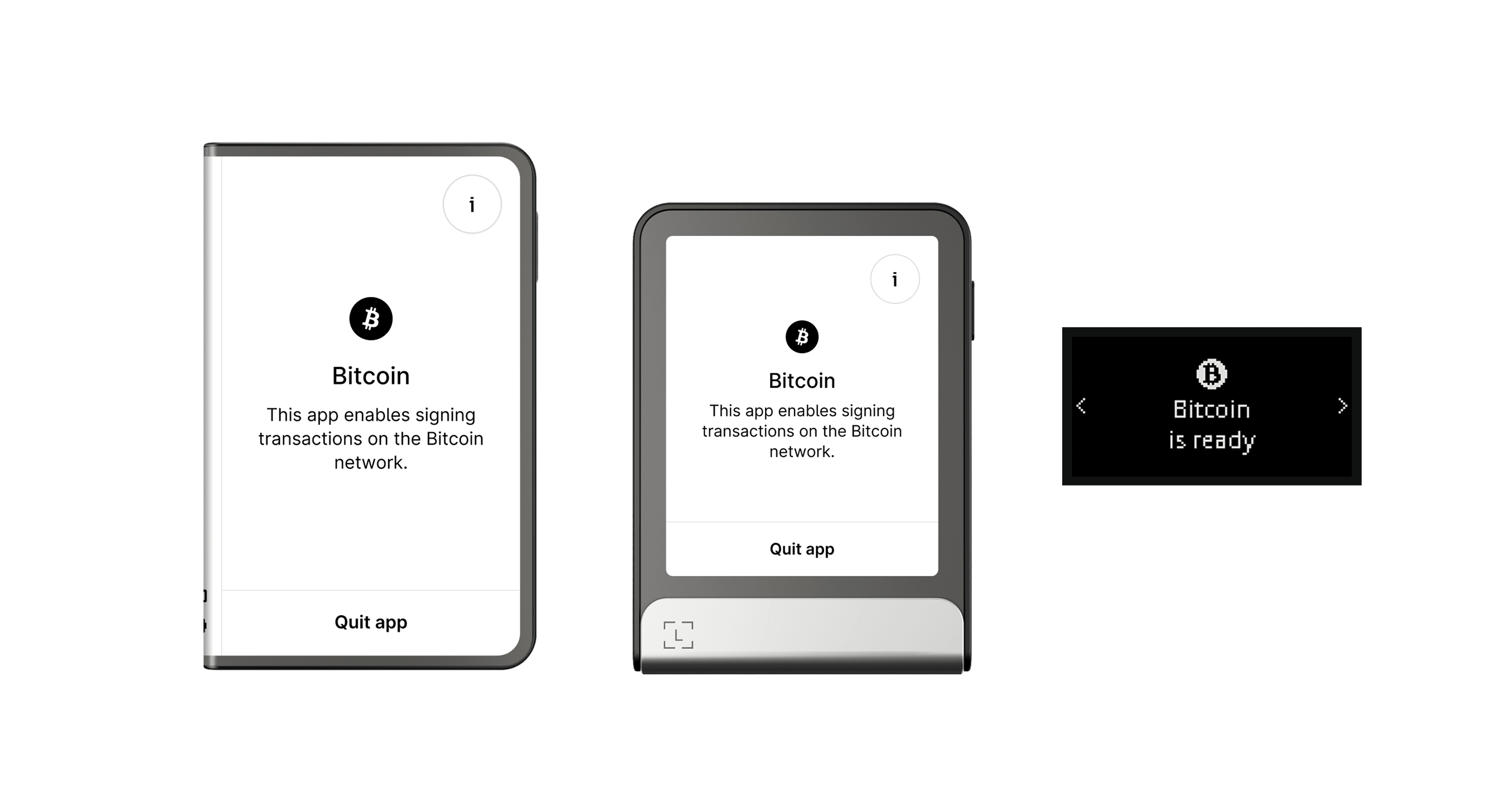 |
|---|
| The Bitcoin app’s home screen, on Ledger Stax, Ledger Flex, and Nano devices. |
API
nbgl_useCaseHomeAndSettings()
This high-level API takes care of automatically building the app home screen and the settings screen (see the next chapter). View API docs.
The top-right icon is set automatically: a wheel icon if there are user-customizable settings, or an “info” icon otherwise. Read the next chapter for details on settings.
Troubleshooting
The home screen layout looks different than expected on a physical device.
Test your home screen on the Speculos emulator for each target device before loading on hardware. Use the BOLOS_SDK variable to target different SDKs when building. See the app boilerplate setup guide for details.
Key takeaways
- · Provide a short description that helps users understand what your app does and what to do next.
- · Rely on the default home screen construction that is automatically built from your app’s resources.
Next steps
- Info and settings screen — how to implement the settings and info pages that appear after the home screen.
- Transaction screens — how to design the transaction review flow.
- App boilerplate — fork the boilerplate to get a working home screen out of the box.
