Signing transactions and messages
This guide shows you how to implement the transaction review and signing flow in your device app, including Clear Signing, blind signing, and message signing.
Signing transactions is the core function of Ledger’s signers, and probably a core function of your app too.
Prerequisites: Read the design guidelines introduction before implementing any transaction screen.
Definitions
Transactions, messages, and operations
Throughout the Ledger documentation, you will find references to signing “transactions” and “messages”. They are defined as:
- A transaction affects the state of a blockchain, such as sending Bitcoin or transferring an NFT on Polygon.
- A message is an off-chain payload that is signed and then either broadcasted later, bundled with another operation, or used for off-chain verification. This is typically encountered on EVM chains (for example, EIP-191 or EIP-712 such as permits).
- An operation is a generic term that can describe a transaction or a message, and can be used as a generic fallback.
Clear Signing and blind signing
Clear Signing means that users fully understand what they are signing. The transaction parameters must be presented in a complete and easy-to-understand way so that the user’s consent is fully informed.
Thanks to the secure display of their Ledger device and Ledger’s cryptographic infrastructure, users have the guarantee that what they see is what they sign.
While this does not always guarantee execution (which would require full smart contract audits and more), Clear Signing is a must-have for security because it protects users against malware and man-in-the-middle attacks.
User experience greatly benefits from Clear Signing too: only the fields relevant to the review are presented (conciseness) and they are well-formatted (clarity and protection from mistakes).
Because Clear Signing is crucial for security and user-friendliness, blind-signed transactions and messages must display a standard warning that asks for explicit user acknowledgment. This is presented later in this guide.
Anatomy of a transaction
All transactions and messages must respect the following structure:
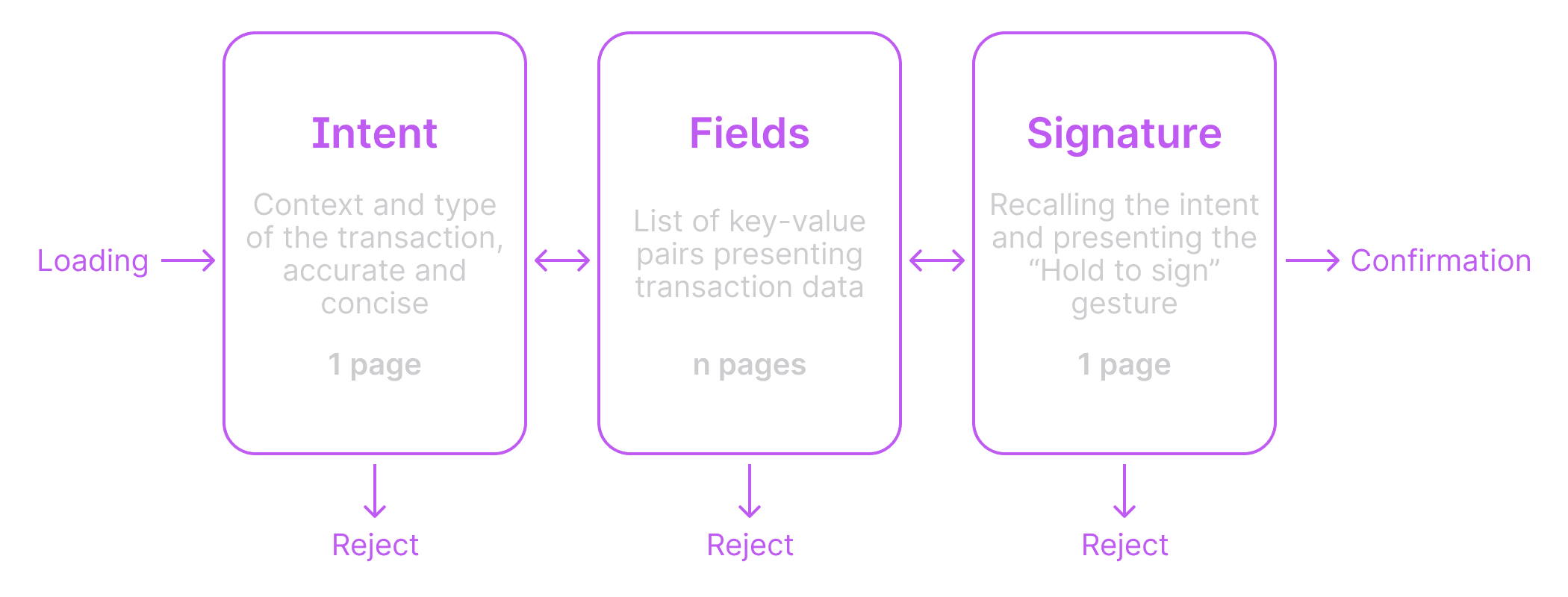
The double-sided arrows represent the ability for users to navigate back and forth within the operation. Navigation edge cases are discussed in the Advanced interactions chapter.
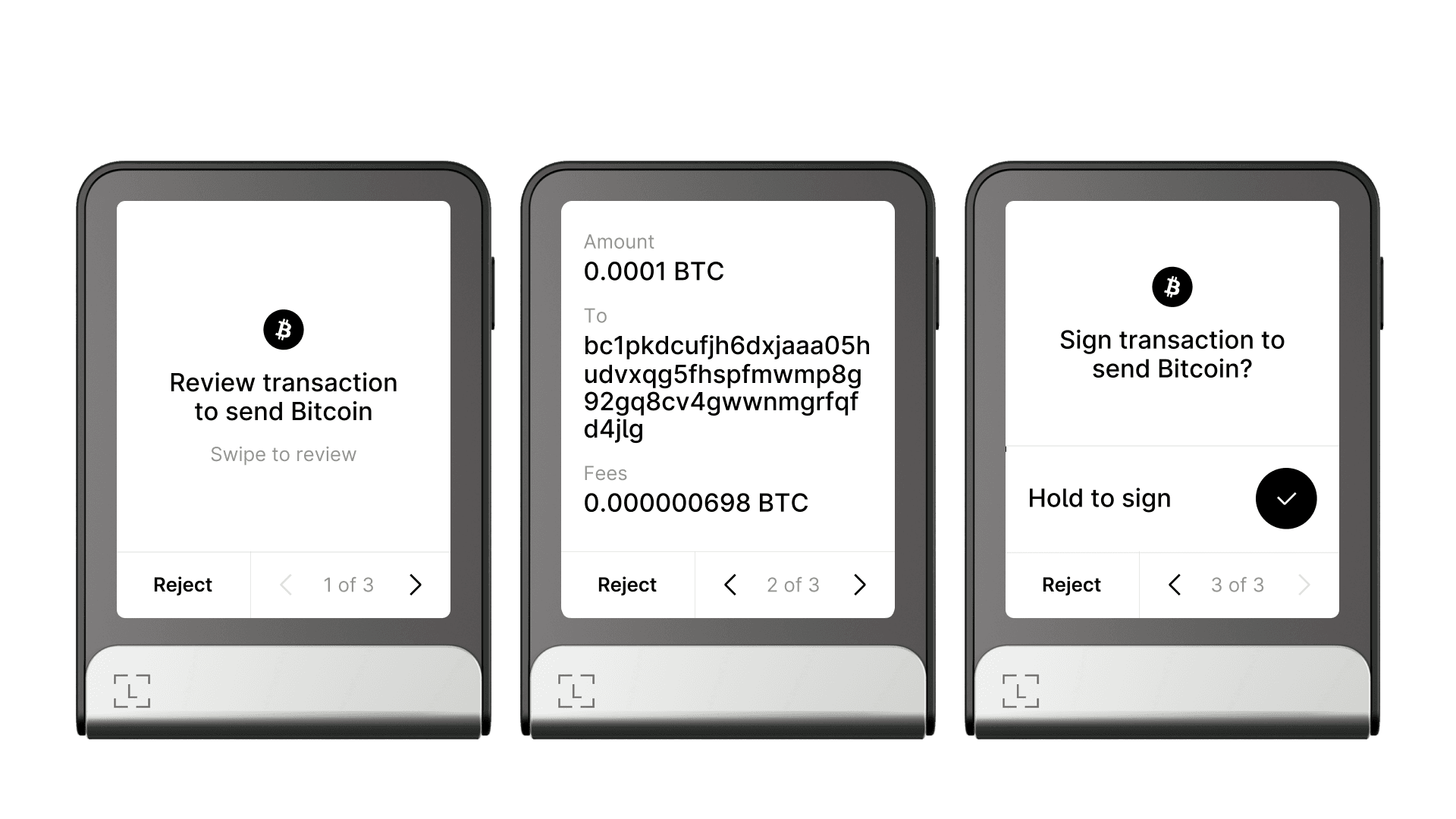
Here is an illustration of this structure with the Bitcoin app on Ledger Flex:
And the same structure on Nano devices:
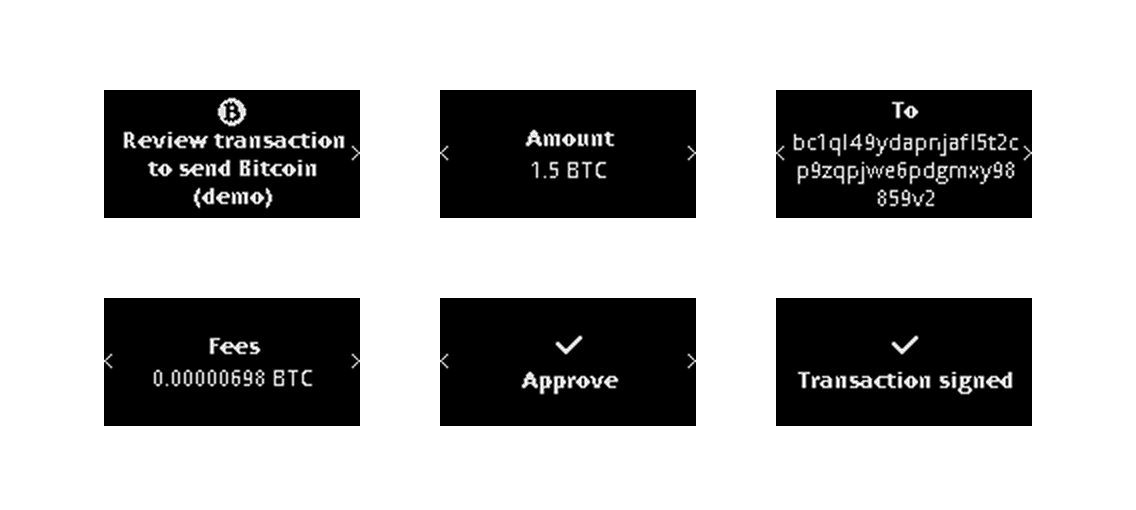
Users must be able to reject the operation at any time, including at the intent and signing steps. Do not modify the default UI elements that display the “Reject” or “Cancel” buttons at the bottom of each step.
In the following sections, we go step by step over the different parts of a canonical transaction.
API
nbgl_useCaseReview()
This high-level API function covers the full standard transaction layout presented in this chapter. View API docs.
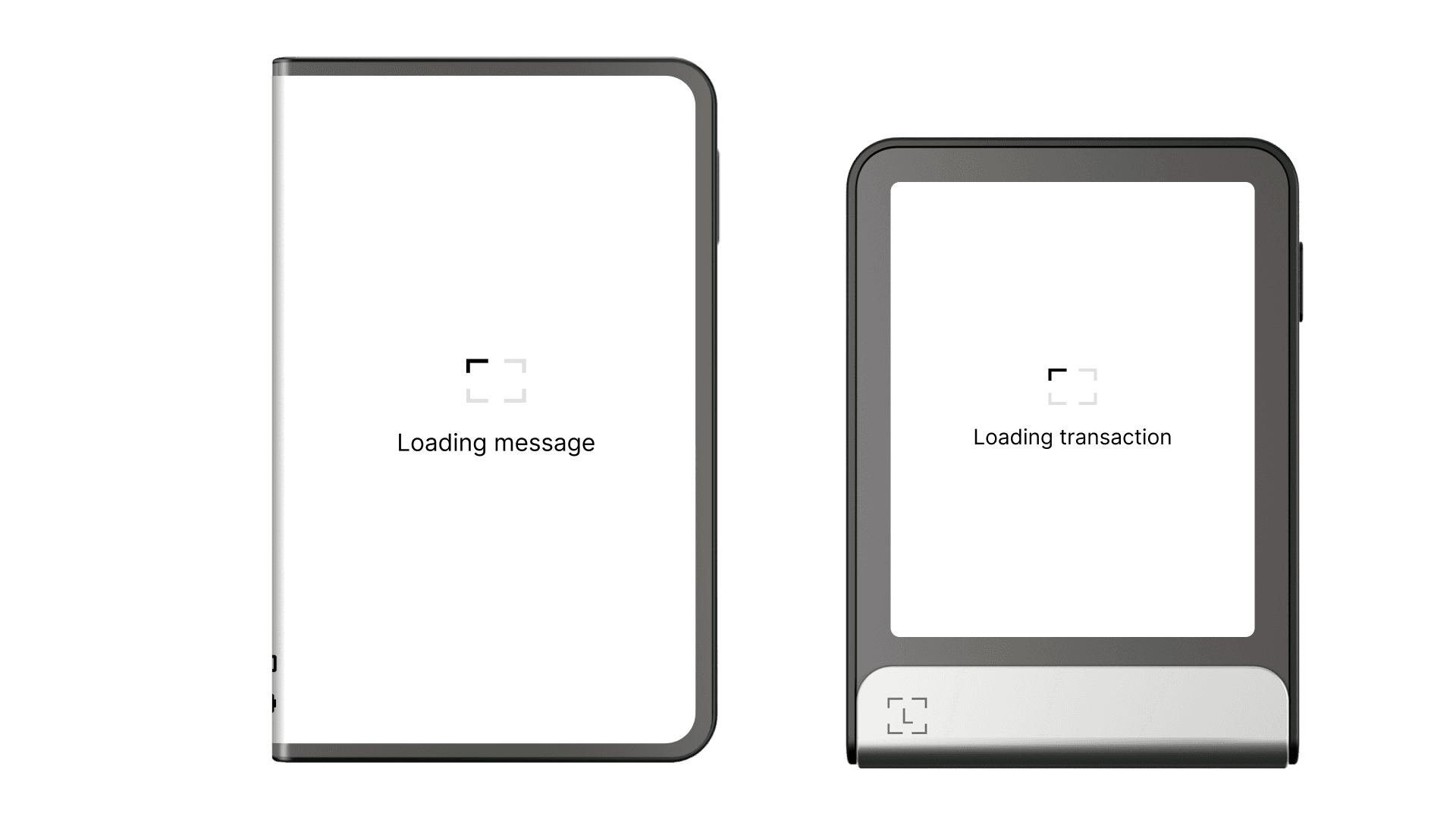
Loading transaction data
Most transactions and messages load instantaneously for users.
Sometimes, though, processing or data-fetching durations may be noticeable. In these cases, use the standard loader for Ledger Stax and Ledger Flex. As a rule of thumb, show the loader if the loading duration is 1 second or more. Avoid showing the loader for only a few milliseconds, as the flash may appear as a bug to users.
Intent: giving users context before signing
The transaction intent is the first page displayed to users. It is part of Clear Signing and shows crucial information:
- The nature of the operation: transaction or message.
- The chain(s) or network(s) involved.
- The type of operation: send, swap, delegate, approve, list NFT, and so on.
- Any other useful information before the detailed review of fields.
The intent acts both as an informational step and a safety net, because users can reject the operation as soon as the prompt is displayed, without reviewing any fields.
When the intent appears, Ledger Stax and Ledger Flex play a sound to attract the user’s attention to the device. Keep this default behavior in your app unless you have a specific reason not to. Users can disable sounds in the device settings.
Here are intent examples for different apps and operations:
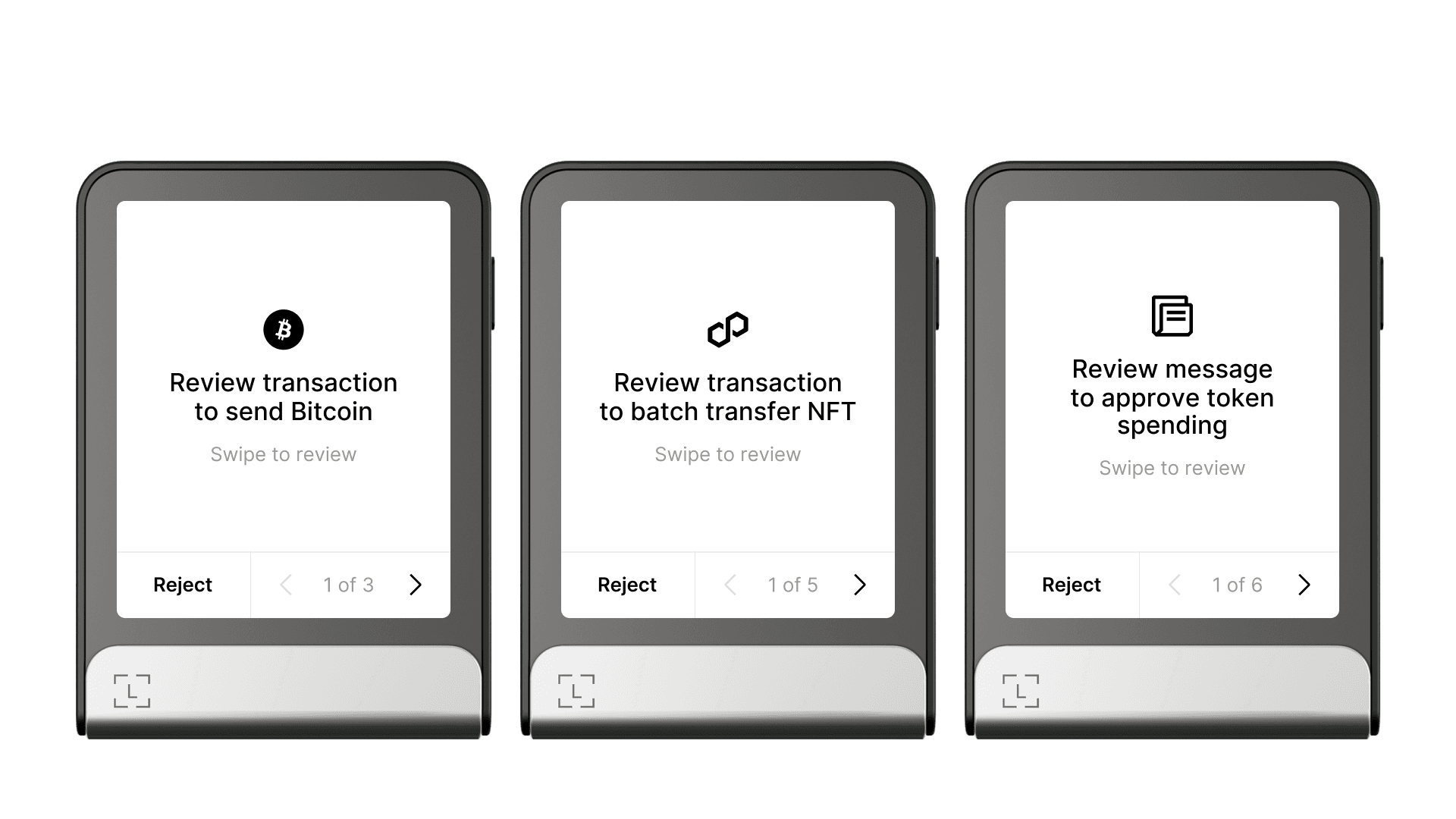 |
|---|
| Intent examples, from left to right: Bitcoin transfer, NFT transfer on Polygon, and Ethereum Permit2 message. |
Here are more intent examples from other chains:
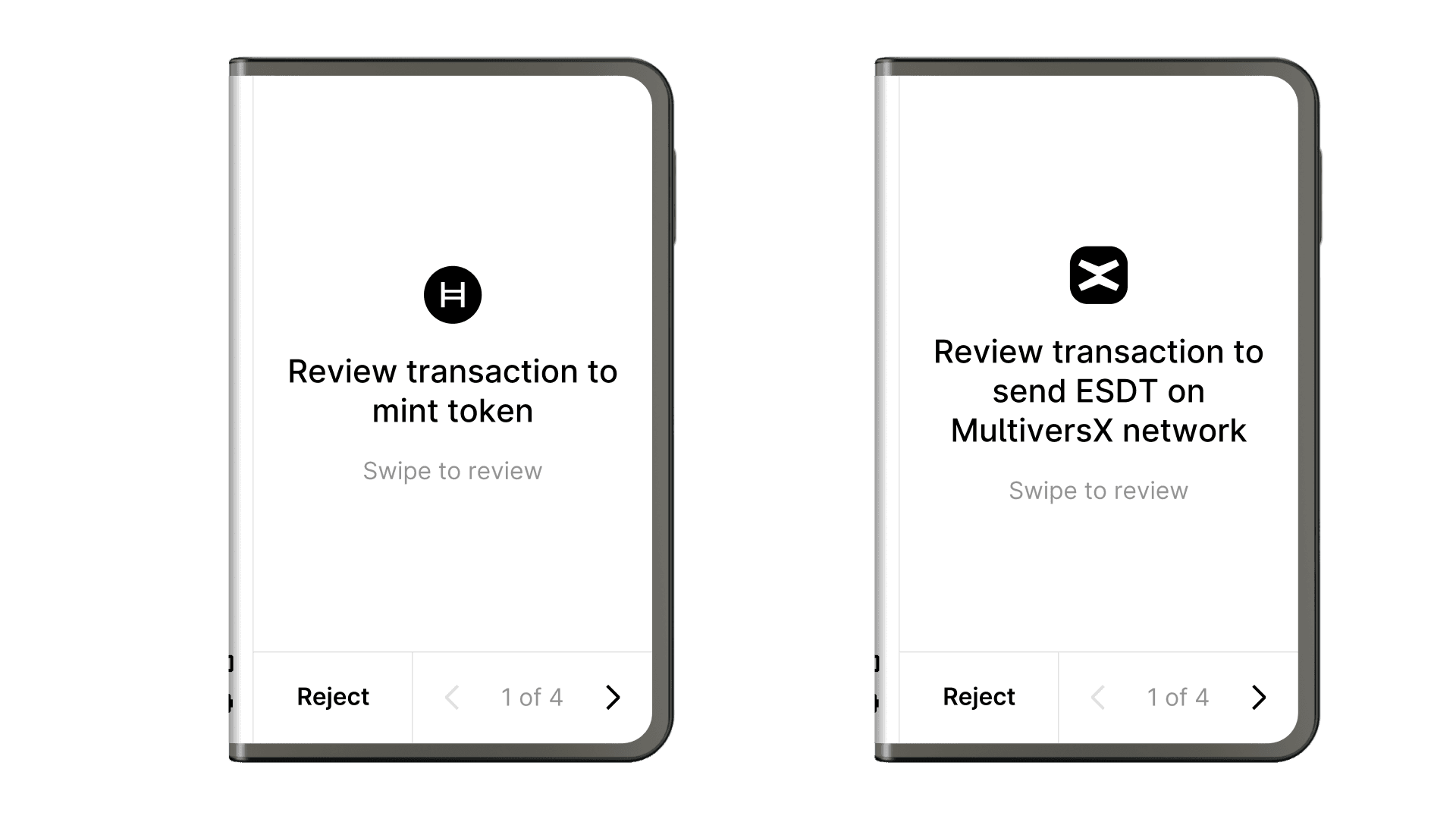
When you lack information about the transaction or message, use a generic intent as a fallback:
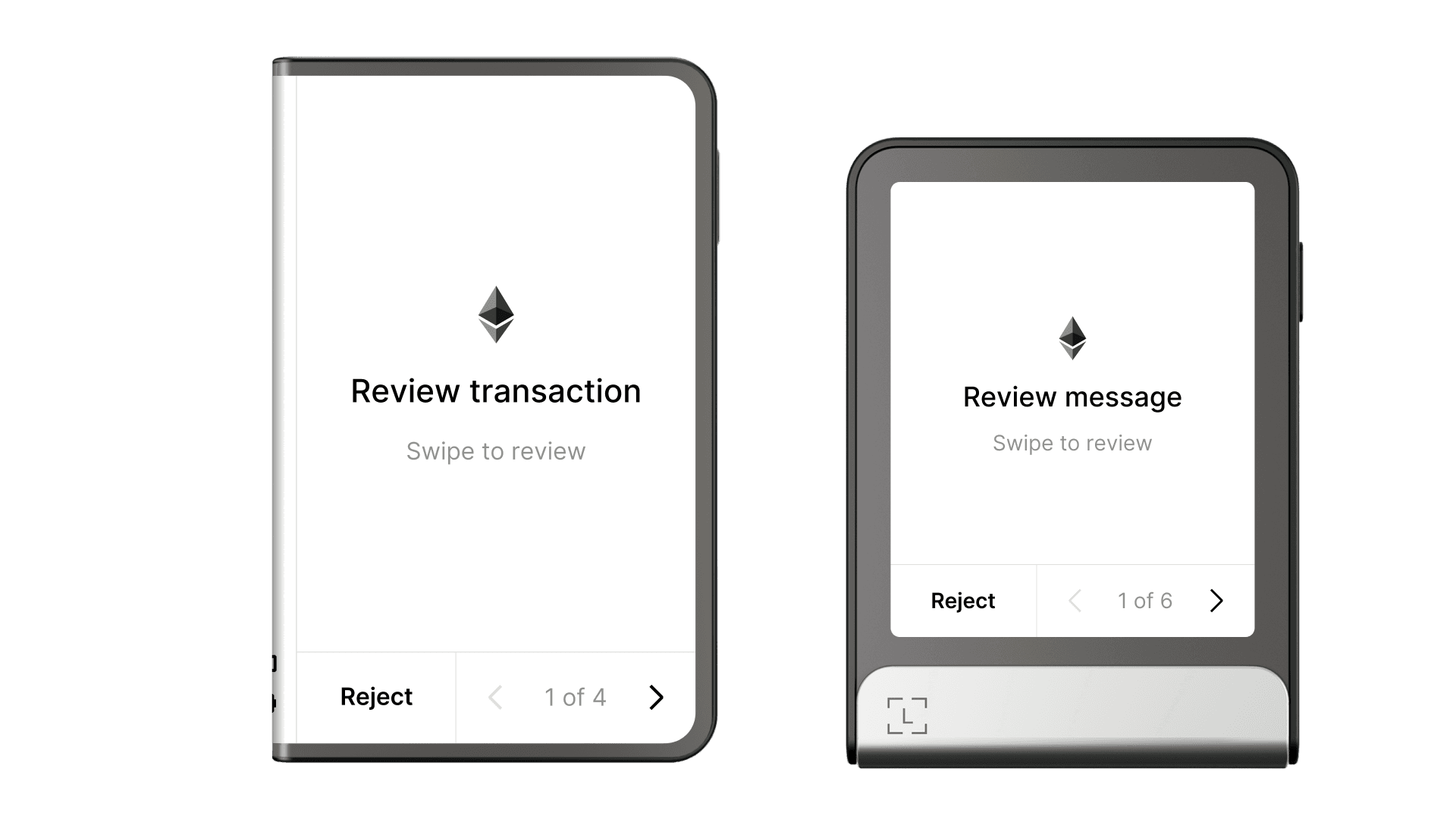 |
|---|
| Generic, fallback intents (to avoid). |
Avoid generic intents as much as possible. Always provide more context so that users can clear sign with confidence, or reject if anything differs from what they expected.
The prompt sentence must start with “Review”. It is built either:
- · Dynamically, composing the transaction type and other key information.
- · Or statically, by constructing a legible sentence with the available information for each transaction type.
Presenting transaction fields for review
Transaction fields must allow users to fully understand the operation they are signing, while minimizing information that is not useful for their control or safety.
Transaction and message fields are always structured as rows of key-value pairs. The default layout takes care of page construction and pagination automatically.
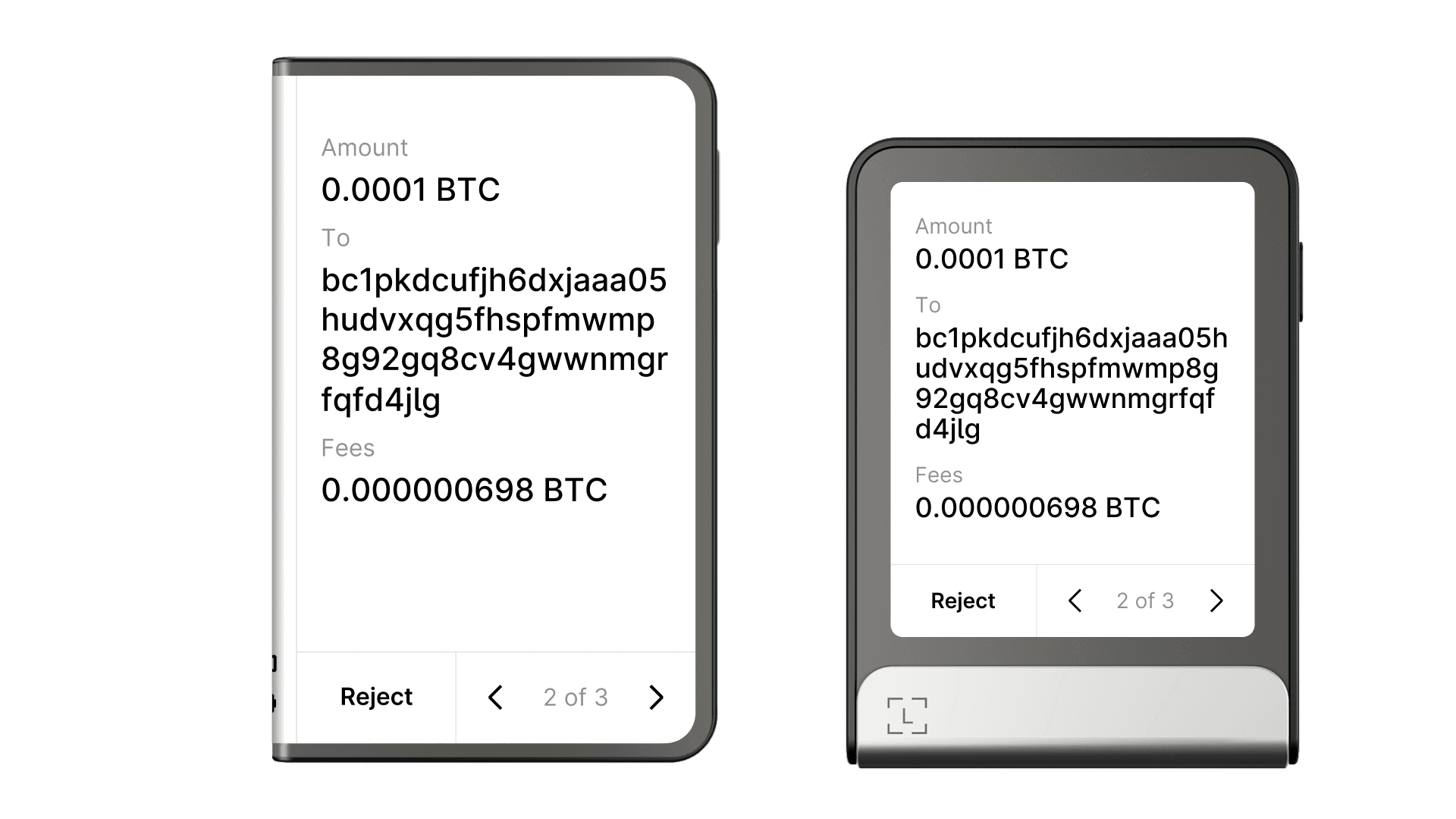 |
|---|
| Fields for a Bitcoin transfer, on Ledger Stax and Ledger Flex. Layout differences are handled automatically by the API. |
Ensure consistency by presenting common fields in a standard order. For simple transfers, this is:
- “From” address
- “Amount” (value and currency)
- “To” address
- “Fees” (value and currency)
Here is how the Ethereum app displays a transfer by following this guideline:
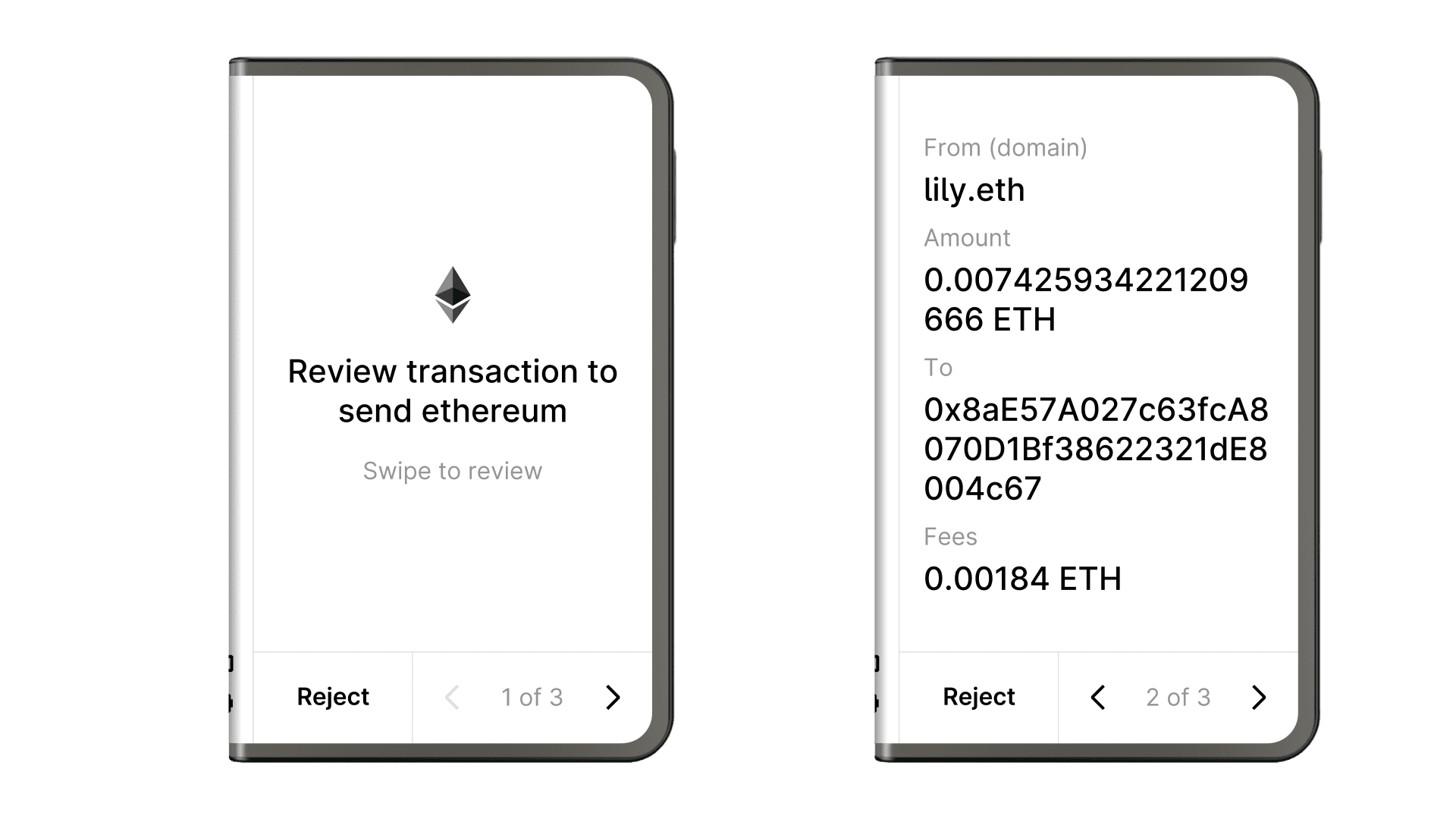
- · Let your users navigate back and forth within transactions. Exceptions, such as streamed transactions, are discussed in the Advanced interactions chapter.
- · Pagination is handled automatically by the API — focus on providing the right fields.
- · Field names must be consistent and explicit. For example, use “To” rather than the generic “Address” to distinguish sender from receiver. Use “Amount” and “Fees” (or “Max fees”) consistently.
Signing a transaction
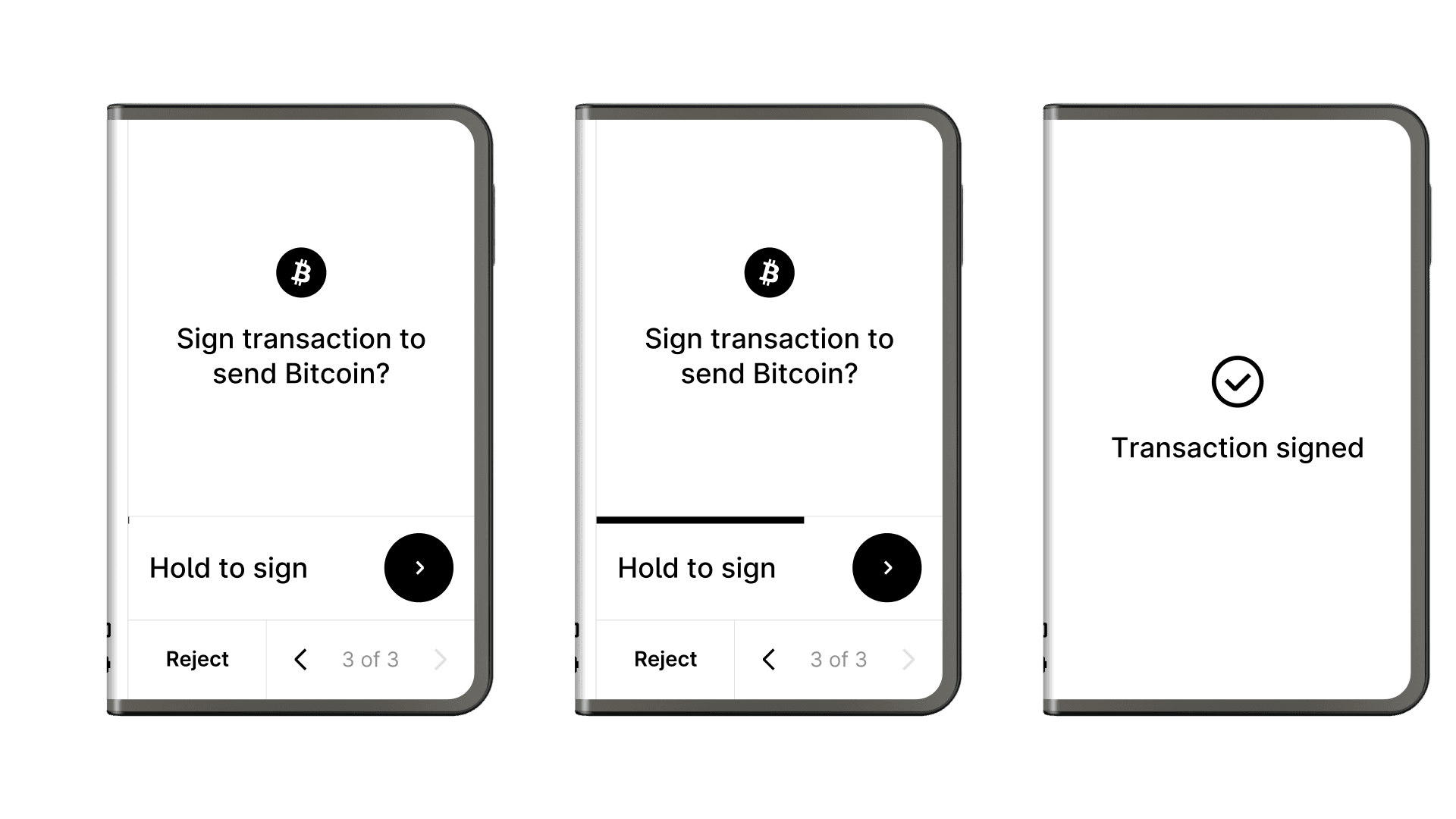
The signing page is always the last one. It ensures that users reviewed all critical fields before confirming.
The signing page recalls the intent by presenting similar data, restoring context at the moment of signing.
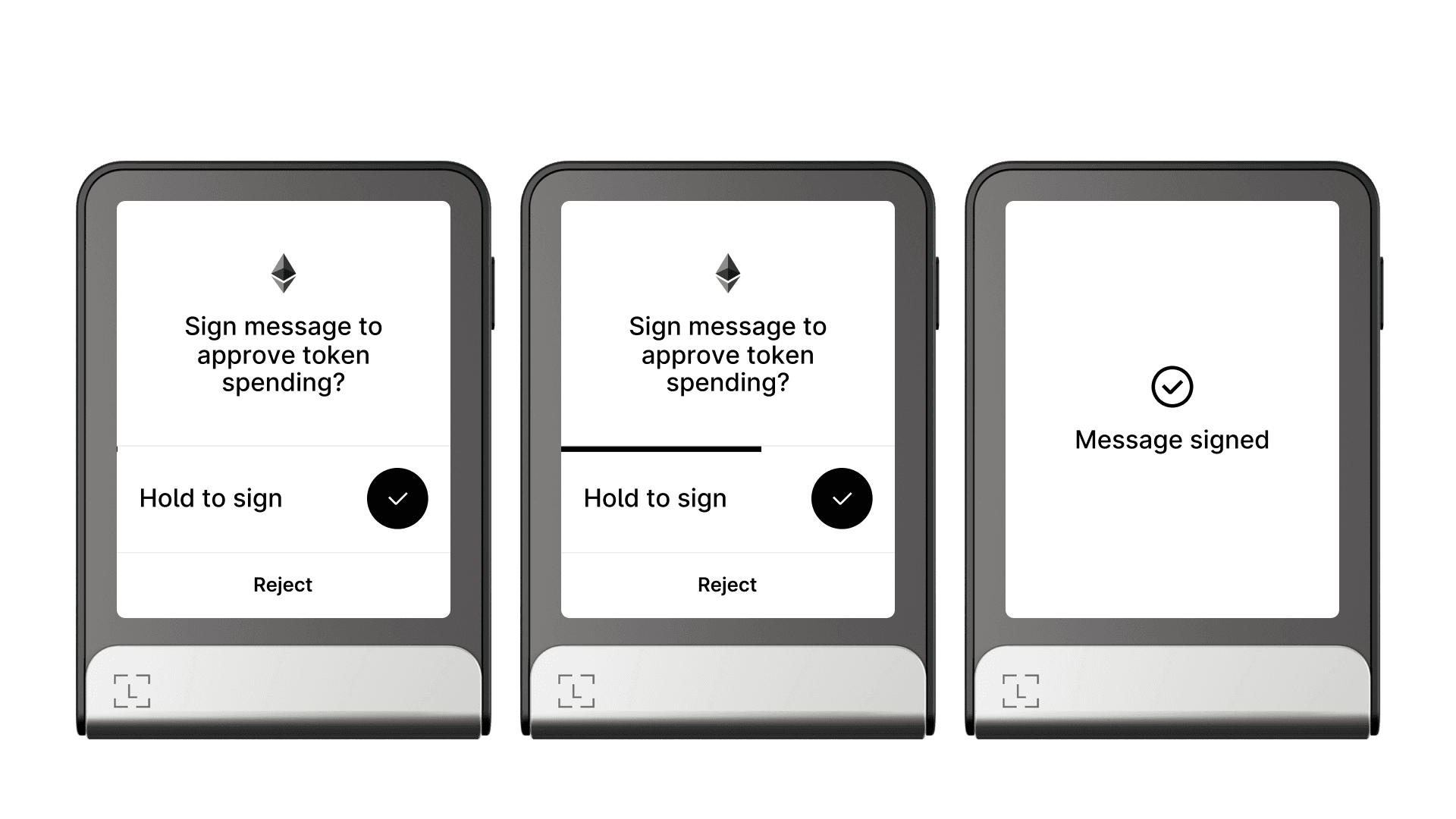
Confirming a transaction always uses the same press-and-hold gesture on the dedicated area of the screen: “Hold to sign”. After 2 seconds, the transaction is signed and the user receives a success notification accompanied by a sound.
The notification dismisses automatically after a few seconds, and the user is returned to your app’s home screen.
 |
|---|
| Signing a Bitcoin transfer with the Bitcoin app on Ledger Stax. |
 |
|---|
| Signing a Permit2 message with the Ethereum app on Ledger Flex. |
- · Use the default “Hold to sign” wording. The Ledger device cannot confirm whether the transaction was transmitted to the software wallet and broadcasted on the blockchain.
- · Use the default “Transaction signed” or “Message signed” wording. The device cannot confirm whether the transaction was successfully broadcasted.
Rejecting a transaction
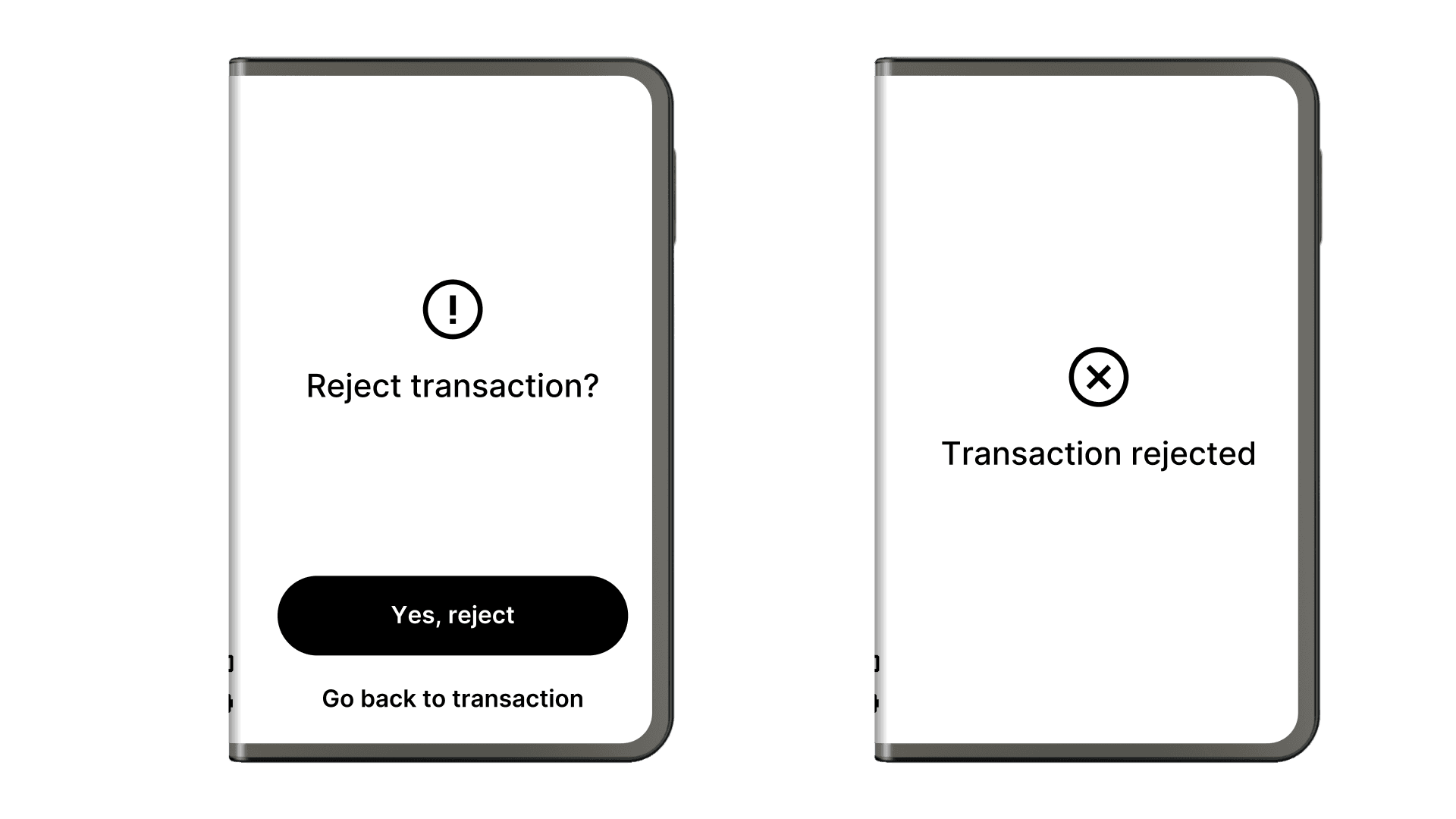
Rejecting a transaction is a safety action that must be accessible at all times. It sits at the bottom of every screen, from the transaction prompt to the signing step.
When users tap “Reject transaction”, a confirmation modal asks them to confirm. This prevents accidental touches.
Page grouping
To help users navigate longer or more complex transactions, you can group several field pages into sections using divider pages that show a section title and number:
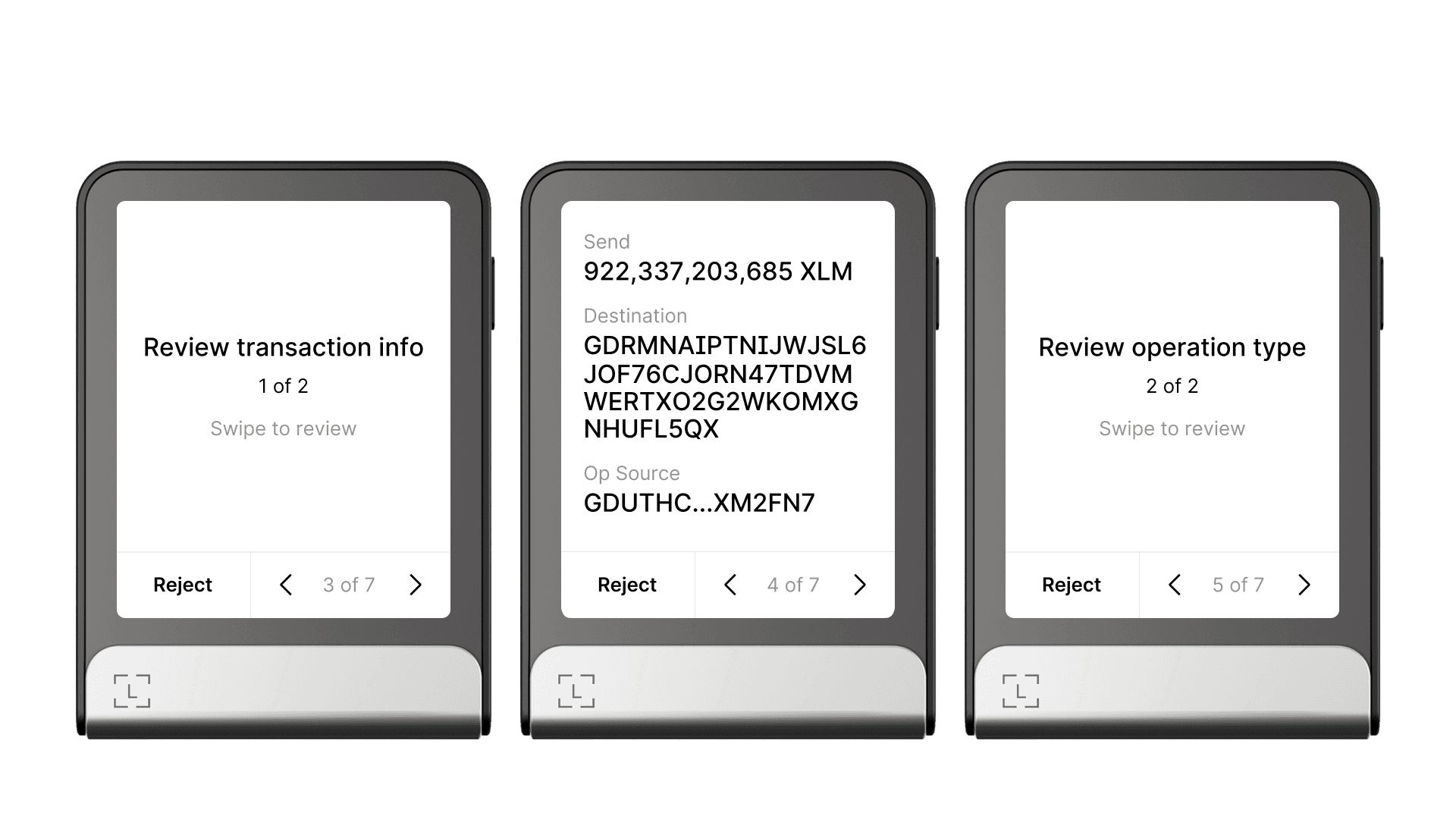 |
|---|
| Divider pages to organize a complex signing flow in the Stellar app. |
Blind signing
When a transaction cannot be fully decoded, you must present a standard “blind signing warning sequence” to users. It must be accompanied by a dedicated setting that the user enables in order to sign non-decoded transactions or messages.
- The “blind signing” setting must be off by default. When it is off, a specific warning is presented when the user attempts to sign a non-decoded transaction.
- After enabling the setting, users must still be warned for every blind transaction.
- On the transaction intent and signature pages, a warning icon is introduced. When tapped, it opens a modal with the detailed risk review.
The example below shows a blind signing sequence on Ledger Stax, where the Ethereum app presents the approval of an unknown ERC-20 token, after the blind signing setting was enabled:
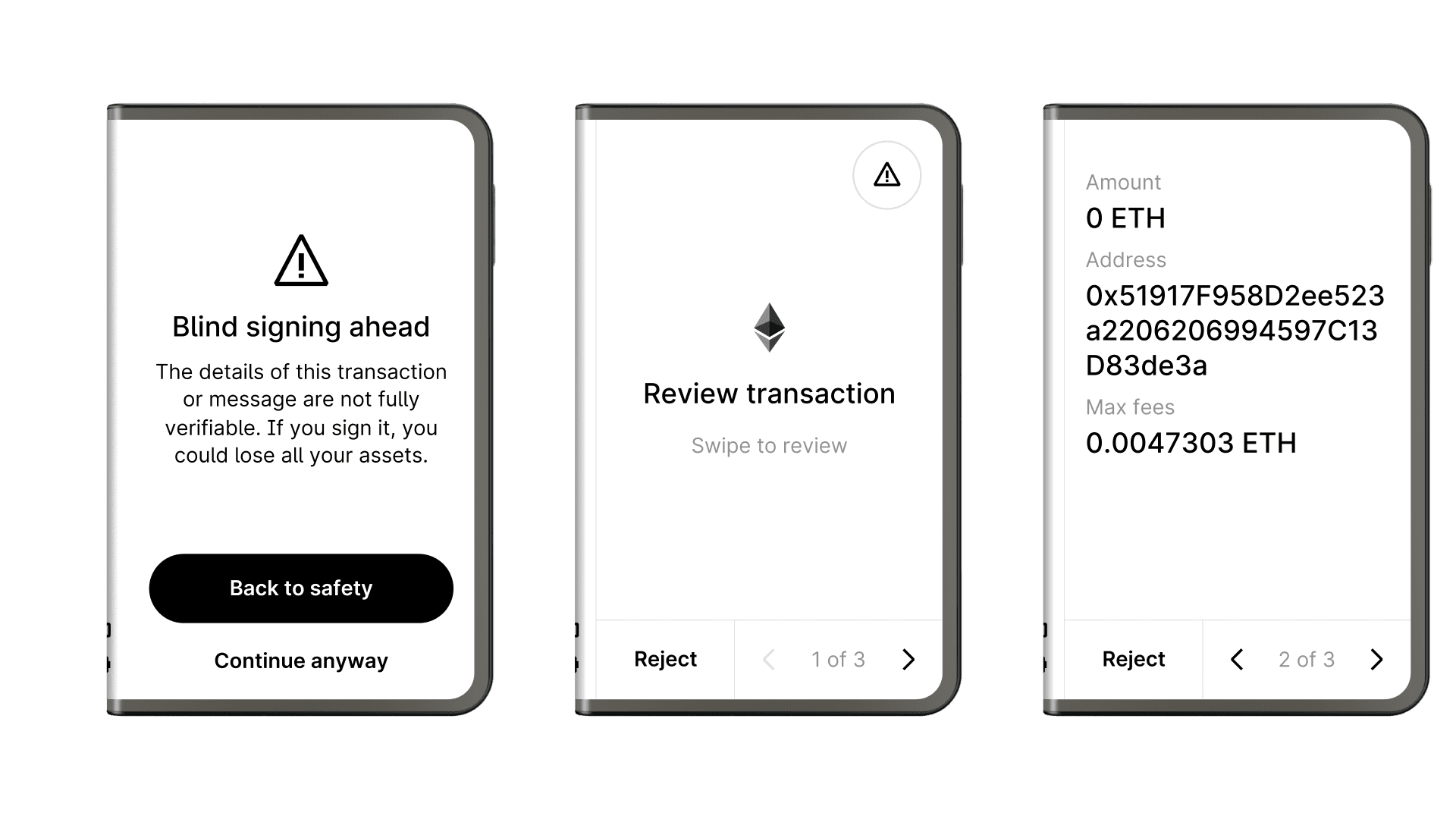 |
|---|
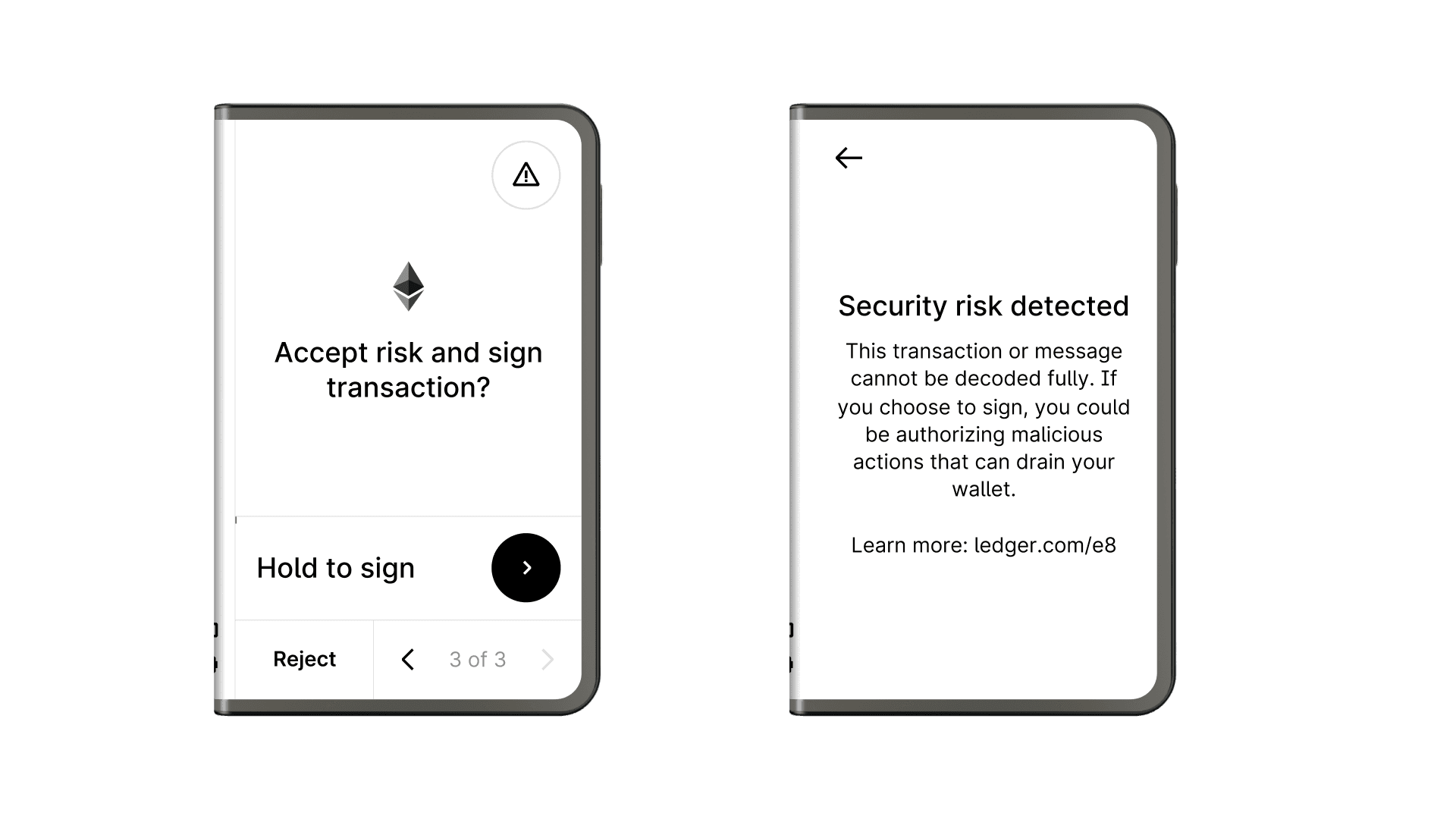 |
| The user cannot understand that they are signing a token approval in this example. The last screen appears when the user taps the warning icon in the top-right corner on the intent and signing pages. |
If the “blind signing” setting is disabled, a dedicated warning redirects the user when they attempt to sign a transaction that cannot be fully decoded:
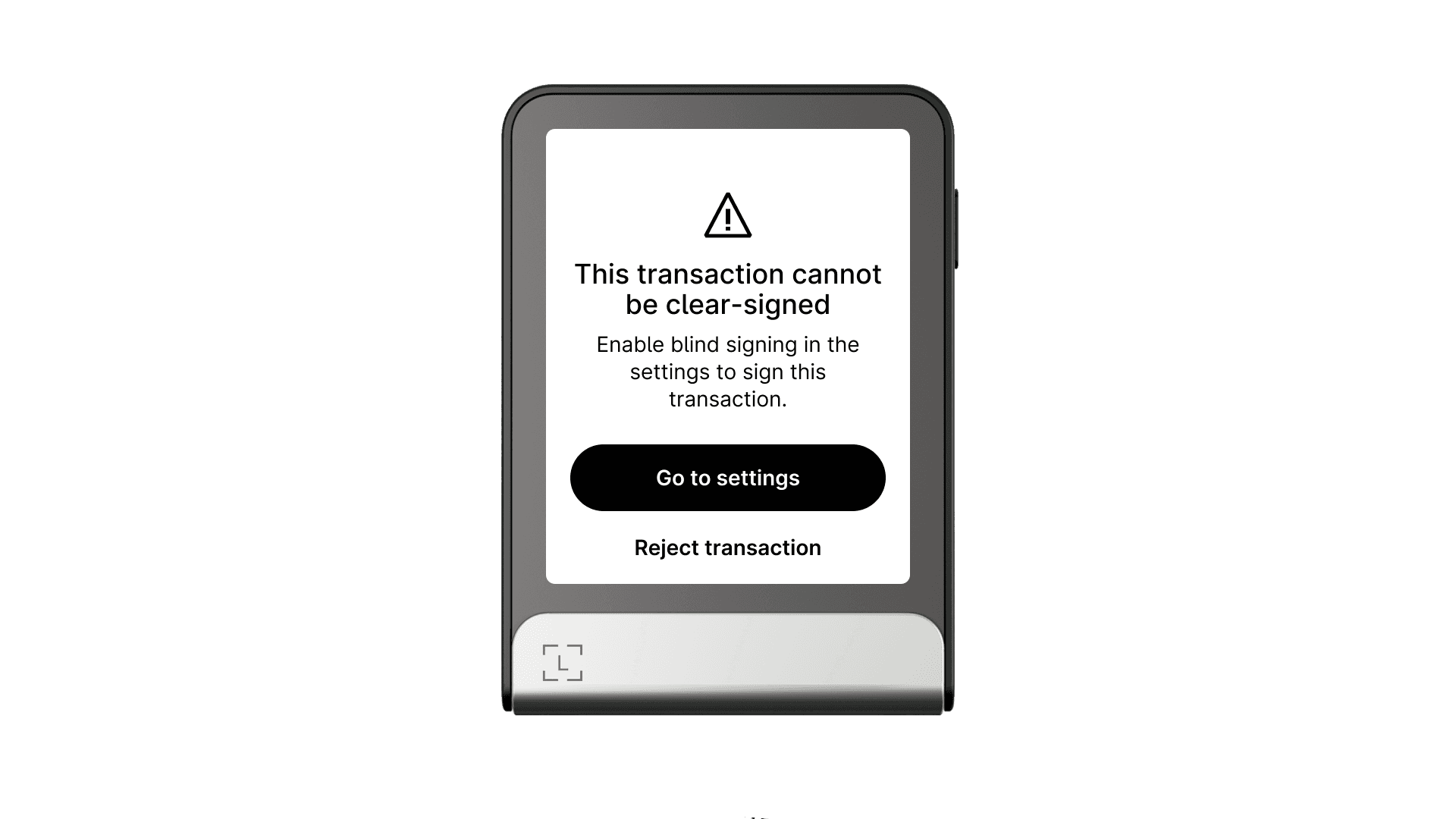 |
|---|
| Replace “transaction” with “message” when signing a message instead of a transaction. |
API
nbgl_useCaseReviewBlindSigning()
This high-level API function covers the special case of blind-signed transactions and messages presented in this section. View API docs.
Signing messages
While this chapter mainly focuses on transactions, the same principles apply to messages. Replace “transaction” with “message” consistently throughout the wording.
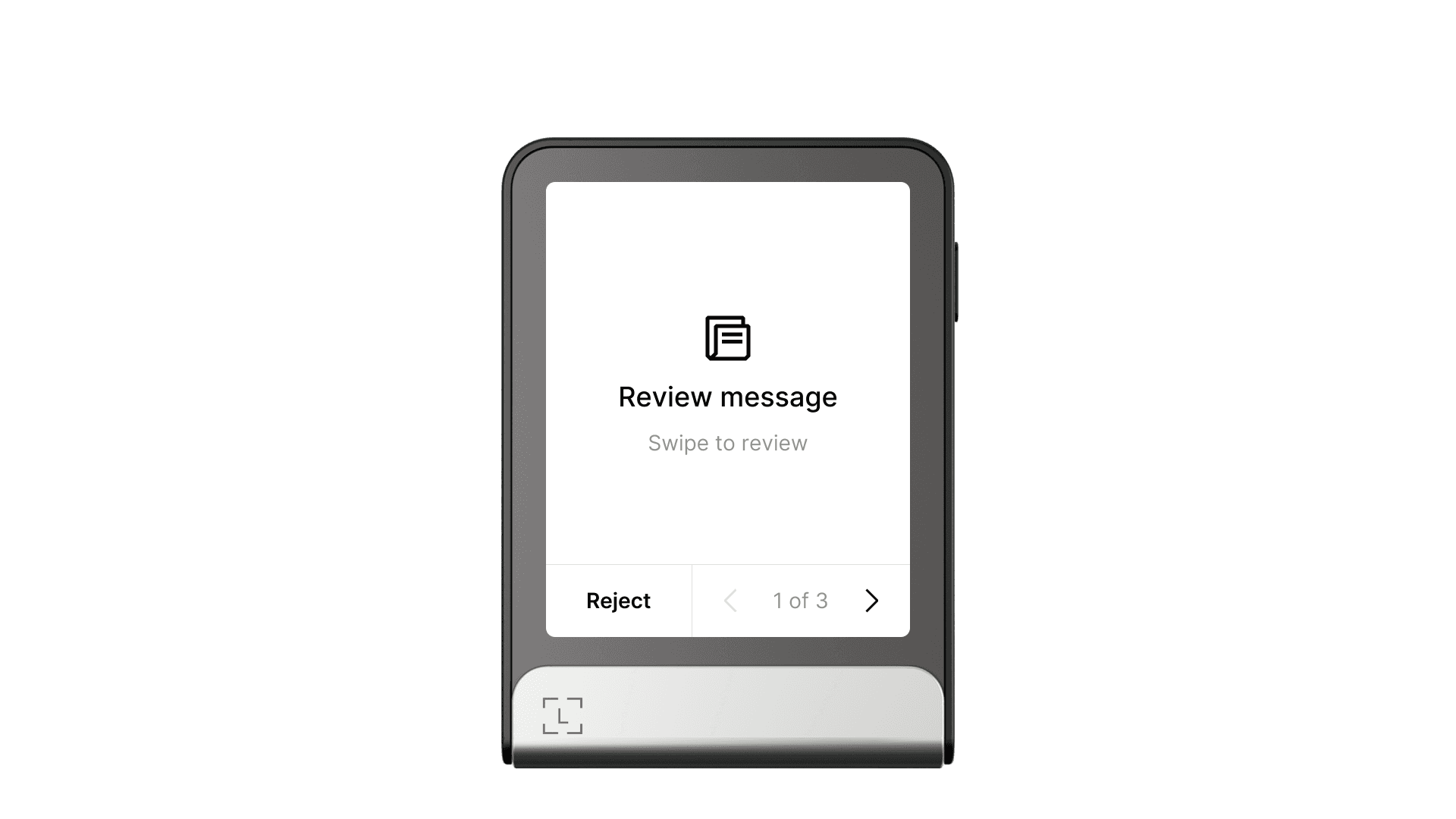
When messages lack information about their type, structure, blockchain, or network, the prompt and signature screens must use this “scroll” icon:
Key takeaways
- · Rely on the default transaction structure and allow users to navigate freely within it. Use the default signing gesture and wording to keep the experience consistent across all apps.
- · Use the transaction intent and transaction fields to craft a great Clear Signing experience for your use case, balancing complete user control with digestible information.
- · When Clear Signing is not possible, you must use the standard blind signing warning template.
- · Refer to the Advanced interactions chapter if your app needs to handle special cases outside the high-level API use-case functions.
Next steps
- Address verification — how to implement address confirmation screens.
- Info and settings — how to expose app info and user-configurable settings.
- Advanced interactions — streaming transactions, progressive disclosure, and other edge cases.
- NBGL use case reference — full API documentation.
